
CaptchaFence
CaptchaFence™ protects the websites on your Enhance servers from scraping and scanning bots, including botnets that keep changing IP address. When it spots a scraper, it sends that visitor to the cPFence Security Check CAPTCHA: people pass and carry on as normal, while bots that never pass are blocked for a while. Bots that probe sites for weak spots are blocked straight away.
CaptchaFence is off by default, works per server and needs LogSpot turned on.
Turn it on
Section titled “Turn it on”- Open WAF Management, choose one server and open Settings.
- Under CaptchaFence™, set Scraping bots to Log only, then save. In this mode it only reports what it would do and changes nothing for visitors.
- Watch the CaptchaFence™ tab for a while. If it would challenge a visitor you trust, add them to the whitelist first.
- Set Scraping bots to On and save, so it challenges and blocks.
Login pages, in the same group, is the login-page CAPTCHA switch. It is separate from Scraping bots.
Review activity
Section titled “Review activity”WAF Management → CaptchaFence™ shows the mode, the challenged, passed and blocked IPs and recent reports with the website names. It shows one server at a time. Each IP links to its AbuseIPDB page. The lists are kept only while Scraping bots is On.
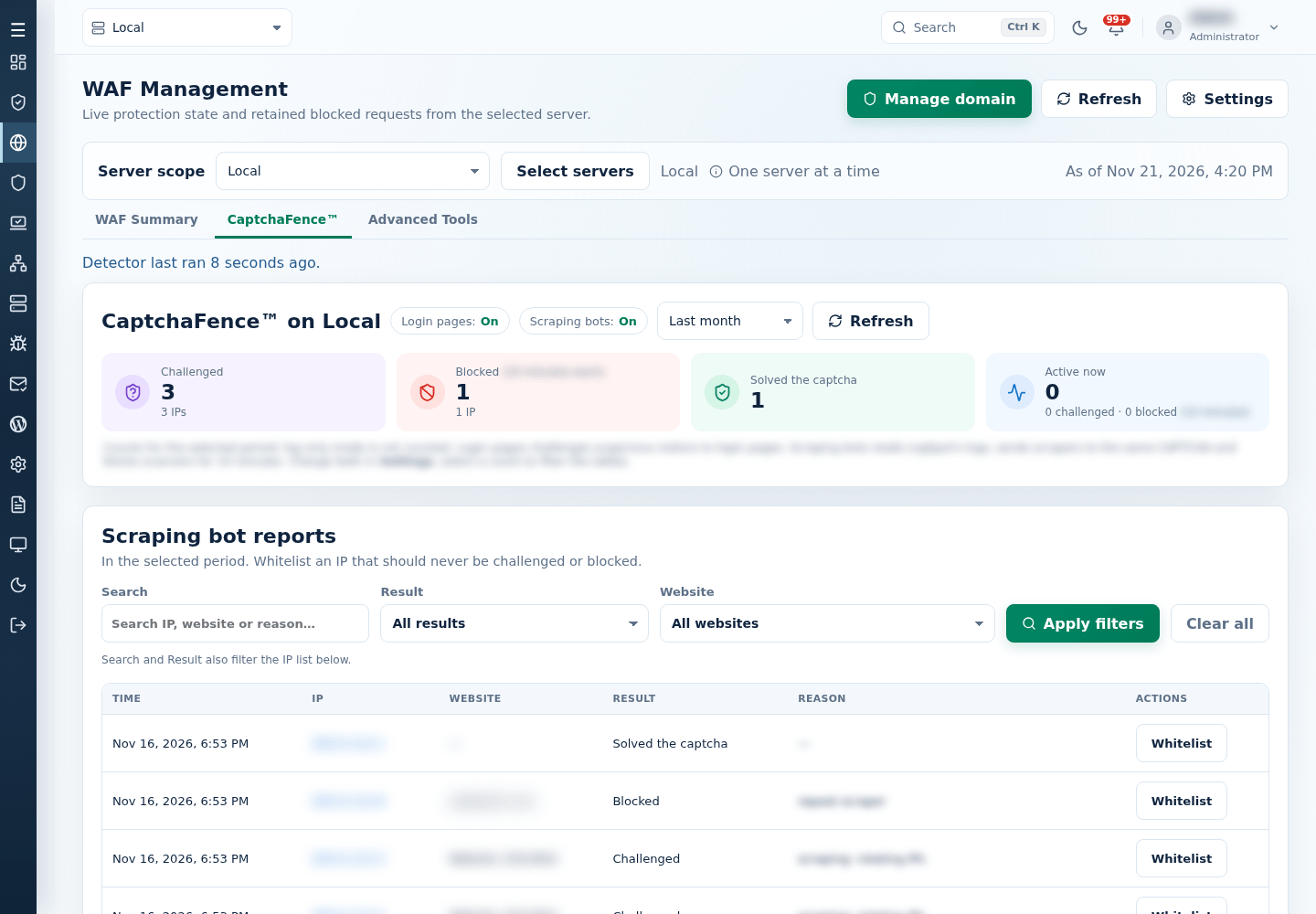
To end a block or let an IP start fresh, select Remove next to it. CaptchaFence blocks also appear in the WAF summary and on the dashboard.
Whitelist
Section titled “Whitelist”Add trusted visitors in the tab’s Whitelist section, or with the commands below. CaptchaFence never challenges or blocks an IP address or CIDR range you add, or visitors whose User-Agent contains a text you add (at least 8 characters). Add a path, such as a custom admin area, so requests to it are not counted as page views.
The WAF IP whitelist and the IPDB whitelist also apply. Select Remove next to an entry to delete it.
Command line
Section titled “Command line”Run these as root on the server you want to change.
| Task | Command |
|---|---|
| Turn on in report-only mode | cpfence --captchafence-mode log |
| Turn on to challenge and block | cpfence --enable-captchafence (same as cpfence --captchafence-mode on) |
| Turn off and clear its lists | cpfence --disable-captchafence |
| Show the mode and list sizes | cpfence --captchafence-status |
| List challenged, passed and blocked IPs | cpfence --captchafence-list |
| End a block and clear an IP | cpfence --captchafence-remove IP |
| Whitelist an IP or range | cpfence --captchafence-whitelist-ip IP|CIDR, cpfence --captchafence-del-whitelist-ip IP|CIDR |
| Whitelist a User-Agent text | cpfence --captchafence-whitelist-agent TEXT, cpfence --captchafence-del-whitelist-agent TEXT |
| Whitelist a path | cpfence --captchafence-whitelist-path PATH, cpfence --captchafence-del-whitelist-path PATH |
CaptchaFence settings and whitelists are part of settings backup and restore.